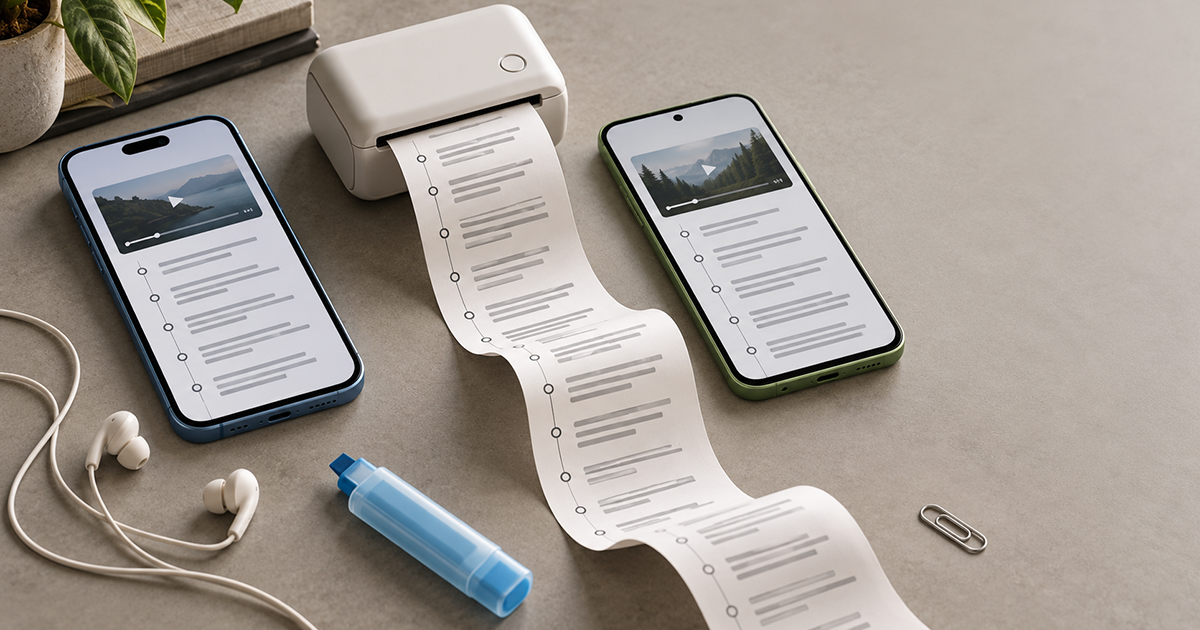
Getting a transcript on a desktop browser is easy — you open the video, click the three dots, and you're done. On a phone, the same task feels unnecessarily complicated. The YouTube app shows a transcript panel, but there's no export button. The share menu doesn't offer a text file. And copying a long transcript on iOS is fiddly at best.
This guide walks through every practical method for getting a YouTube transcript on iPhone and Android in 2026 — from the built-in app feature to a mobile browser workflow that gives you a real downloadable file. If you want to skip straight to the fastest option, open YouTube Transcript Extractor in your mobile browser and paste the video URL.
What you'll learn:
- 1. Method 1 — YouTube app's built-in transcript panel
- 2. Method 2 — Mobile browser export (best for saving files)
- 3. Method 3 — iPhone Shortcuts automation
- 4. Method 4 — Android intents and share targets
- 5. Copying long transcripts without losing text
- 6. Common problems on mobile (and how to fix them)
- 7. Comparison: which method should you use?
- 8. FAQ
1. Method 1 — YouTube app's built-in transcript panel
Both the iOS and Android YouTube apps have a transcript viewer. It's the fastest way to read or search through what's being said, but it has one big limitation: there is no export button. You can view, search, and manually copy — but not download.
On iPhone (YouTube app)
- Open the video in the YouTube app.
- Tap the video title or the …more arrow below it to expand the description.
- Scroll down to Show transcript and tap it. If you don't see it, the video doesn't have captions available.
- The transcript panel opens. Tap a line to jump to that moment in the video.
On Android (YouTube app)
- Open the video in the YouTube app.
- Tap …more under the title to expand the description.
- Tap Show transcript. The panel opens at the bottom.
- Use the search icon inside the panel to jump to a specific word or phrase.
Limitation: the in-app transcript panel cannot be exported. You can select and copy text manually, but on iOS the selection size is often capped, so long transcripts need to be copied in chunks. For a clean, downloadable file, use Method 2.
2. Method 2 — Mobile browser export (best for saving files)
The cleanest way to get a YouTube transcript on your phone is to open the video in a mobile browser and use a YouTube Transcript Extractor like GetTranscript. This gives you a real file — TXT, SRT, VTT, CSV, or JSON — that you can save to Files, Drive, or share to any app.
The workflow is the same on iOS and Android:
Copy the video URL
In the YouTube app, tap Share → Copy link. The URL is now in your clipboard.
Open a transcript extractor in your browser
Go to YouTube Video to Text in Safari or Chrome. Paste the URL into the input field and tap Extract.
Choose your format
Pick TXT for plain text, SRT or VTT for timestamped subtitles, CSV for spreadsheets, or JSON for further processing.
Save or share the file
On iOS, tap Share → Save to Files. On Android, the file lands in your Downloads folder and you can move it to Drive or send it via any app.
Why this works better than the app: the browser version gives you a real file with proper formatting. You don't lose text to selection limits, and you can pick the exact format you need.
3. Method 3 — iPhone Shortcuts automation
If you extract transcripts often on iOS, you can automate the process with the built-in Shortcuts app. Build a shortcut that:
- Takes the current clipboard as input (your YouTube URL).
- Opens the transcript extractor URL in Safari with the video URL prefilled.
- Waits for the page, then copies the resulting transcript to your clipboard or saves it to Files.
You can also bind the shortcut to a Siri phrase — say “Hey Siri, grab transcript” and it runs. Setup takes about five minutes, and after that extraction is a single tap.
4. Method 4 — Android intents and share targets
On Android, the easiest automation route is to use the Share menu from the YouTube app. Instead of copying the URL and switching apps manually, you can share directly to a browser shortcut or a task automation app like Tasker.
- Create a bookmark in Chrome for the transcript tool with a
?url=parameter. - In Tasker, build a task that takes the YouTube share URL and opens that bookmark with the URL appended.
- The result: one tap from the YouTube share menu → the transcript opens ready to save.
5. Copying long transcripts without losing text
If you decide to copy from the in-app transcript panel rather than export a file, long transcripts are tricky. iOS in particular limits how much text can be selected in a single gesture. Two reliable strategies:
- Copy in chunks. Scroll to the top of the transcript, select ~20 lines, copy, then scroll down and repeat. Paste into Notes as you go.
- Use the browser instead. Opening the video page in Safari or Chrome lets you tap …more → Show transcript in a layout that behaves like a normal web page — selection is easier, and some browsers offer “Select All” on the panel.
6. Common problems on mobile (and how to fix them)
“Show transcript” is missing
The option only appears when captions exist for the video. If the creator disabled captions or auto-captions haven't been generated yet, it won't show. Wait a few hours, or try a different video to confirm the issue isn't your account.
Transcript shows only partial text
Long videos sometimes load the transcript in segments. Scroll slowly through the whole panel to trigger loading of the remaining lines, then copy.
Auto-captions have no punctuation
This is a known limitation of YouTube's ASR on some languages. You'll need to add punctuation manually, or use a desktop workflow with an LLM-assisted cleanup step.
Transcript is in the wrong language
The app shows the transcript in your UI language if available. To get a specific language, open the video in a browser, tap the settings icon on the transcript panel, and pick a different track.
7. Comparison: which method should you use?
| Method | Best for | Export file? |
|---|---|---|
| YouTube app transcript | Quick reading, jumping to a moment | No |
| Mobile browser + extractor | Saving a proper file, any format | Yes |
| iPhone Shortcuts | Repeating workflow, one-tap extraction | Yes |
| Android intents / Tasker | Power users who extract often | Yes |
Ready to try it on your phone?
Open GetTranscript in Safari or Chrome, paste the video URL, and download the transcript in seconds — no app install needed.
8. Frequently Asked Questions
Does the YouTube app have a transcript feature on iPhone and Android?
Yes. Both apps have a “Show transcript” option under the video description for videos with captions. There is no export button, but you can read, search, and manually copy text from the panel.
Can I download a YouTube transcript as a file on my phone?
Not from the YouTube app directly. Open the video in a mobile browser and use a YouTube Transcript Extractor to get a downloadable TXT, SRT, VTT, CSV, or JSON file.
Why is “Show transcript” missing on some videos?
The option only appears when captions are available. If the creator disabled captions, or if the video is brand new and auto-captions haven't finished generating, you won't see it.
How do I copy the full transcript on iPhone?
Tap and hold in the transcript panel, drag the selection handles across the text, and tap Copy. For long transcripts, copy in chunks — iOS limits the selection size in some views.
Is there a YouTube transcript shortcut for iPhone?
Yes — you can build one in the Shortcuts app that takes the clipboard URL, opens the extractor, and copies the result. For most users, opening the video in a browser is faster.
Do mobile transcript tools work for playlists or channels?
Single videos work fine in a mobile browser. Bulk extraction of playlists or channels is better on desktop due to ZIP file handling, but it can be triggered from a phone if you're signed in.
Related guides
- How to Extract YouTube Transcripts — the desktop workflow in full detail
- Bulk Extract a Whole Channel — when one video isn't enough
- YouTube Transcript API Guide — for developers automating extraction
Get your first mobile transcript now
Free for single videos. No app install, no registration.
YouTube Transcript Extractor